



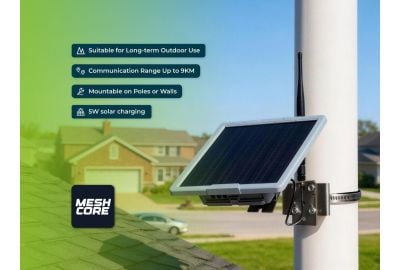
How to Set Up the Seeed SenseCAP Solar Node P1-Pro as a MeshCore Repeater
From the first USB power-up to configuring the UK 868MHz region and announcing your repeater to nearby MeshCore users.
Start setup guide View P1-Pro at ML&SThe Seeed SenseCAP Solar Node P1-Pro is an outdoor LoRa node with a solar panel and rechargeable battery. When supplied with MeshCore Repeater firmware, it is intended to extend a MeshCore network rather than act as a Bluetooth messaging device connected directly to your phone.
That distinction causes two of the most common first-time questions: why does the unit appear not to switch on straight away, and why can the MeshCore mobile app not find it over Bluetooth? This guide explains both and shows how to configure the repeater properly.
5V USB-C
Use a suitable USB supply for first-time activation and charging.
MeshCore Repeater
Configured by USB; it does not behave like a Bluetooth Companion.
EU_868
Select the appropriate regional radio preset and reboot.
1. First power-up: give it a USB kick-start
It is normal for some P1-Pro units to need initial power via USB before they begin operating. Units may arrive in a low-power or hibernated state following storage or transport.
For initial activation:
- Connect the P1-Pro to a suitable 5V USB-C power source, using a working cable.
- Allow approximately five minutes for an initial wake-up attempt. This is an initial activation guide, not a guaranteed full charging time.
- If it does not start, leave it connected longer and check the cable and supply before assuming the node is faulty.
Once awake and adequately charged, the integrated solar panel can help maintain the battery during outdoor operation. Solar performance will depend on available light, installation and power consumption. For initial computer configuration, keep the node connected by USB.
2. Repeater firmware is different from Companion firmware
The P1-Pro MeshCore version is supplied with repeater firmware. It is designed to receive and, where required, forward MeshCore traffic to extend network coverage. It is not a Bluetooth Companion intended to pair directly with the MeshCore phone app for sending personal messages.
P1-Pro Repeater
Fixed or elevated network infrastructure. Configure initially using USB and the MeshCore web configuration tool. It helps extend compatible MeshCore communication paths.
MeshCore Companion
A personal node which connects to the MeshCore app for messaging and other user functions. A separate Companion can discover and make use of a correctly configured repeater.
Important: Not appearing in the phone's Bluetooth device list is expected with repeater firmware. It does not by itself indicate a fault. A repeater can subsequently be managed remotely over MeshCore through a suitable Companion, but it does not pair as a Companion itself.
3. Configure your P1-Pro using a computer
You need a computer with Google Chrome or another compatible browser supporting Web Serial, a USB data cable and your powered P1-Pro.
- Connect the P1-Pro via USB-C. Use a data-capable cable, not a charge-only cable.
- Open the configuration site. Visit config.meshcore.io in Chrome.
- Press Connect. When the browser asks you to select a serial device, choose the port that appears for your P1-Pro and grant access. On Windows this will usually be a COM port, but the number varies from computer to computer.
- Choose the radio region. For the UK 868MHz MeshCore configuration covered here, select the EU_868 preset. Keep the remaining radio settings consistent with the MeshCore network you intend to join.
- Save and reboot. Save the new configuration, then reboot the node so the regional radio settings take effect.
- Configure the repeater identity. Reconnect if required, set a useful node name, and enter the administrator configuration area. The documented default repeater administrator password is
password; change it to a unique password when setting up your own node. - Send an advert. Select Send Advert to transmit an advertisement announcing the repeater to nearby compatible MeshCore devices.
4. Check that the repeater is working
Once the regional settings have been saved and the node has rebooted, sending an advert is the quickest first test. A nearby MeshCore Companion configured with matching radio settings should be able to discover the repeater when it receives the advert.
The P1-Pro's transmit LED can flash briefly when Send Advert triggers a transmission. The colour depends on the installed MeshCore firmware version. A lack of LED activity when another device transmits does not necessarily mean the repeater is broken: the transmit indicator reflects the repeater's own transmissions, not every incoming packet.
Why can't I see the repeater immediately?
Automatic advertisements may be spaced hours apart, depending on the configuration and firmware version. Use Send Advert rather than waiting for the next scheduled broadcast. Discovery also depends on coverage and matching frequency, bandwidth and other radio settings.
5. Troubleshooting common setup issues
6. Want to send messages? Add a Companion
If you want to use the MeshCore smartphone app for messages and location-aware communication, the simplest arrangement is to keep the P1-Pro running as a fixed repeater and use a separate MeshCore Companion as your personal device.
Seeed Wio Tracker L1 Pro
The Seeed Wio Tracker L1 Pro is a portable LoRa node available from ML&S with a MeshCore firmware option. Choose the MeshCore version when ordering if you want a companion for your P1-Pro repeater. The two devices serve different roles within the same network.
View L1 Pro at ML&S7. Install the repeater where it can help the network
Once it works on the bench, choose a suitable position with good exposure to nearby MeshCore nodes and adequate sunlight for the solar panel. Mounting height, terrain, buildings, vegetation and antenna positioning can have a significant effect on range. Secure the installation properly and protect any external cabling against weather.
Check that the radio settings and permitted transmit parameters are suitable for UK operation. MeshCore settings must comply with the applicable UK short-range-device requirements, including relevant power and duty-cycle limits.
Official setup reference
Seeed Studio's official Solar Node MeshCore guide includes configuration instructions and examples of the repeater interface.
Read Seeed Studio's guideBuild your MeshCore network with ML&S
Start with the solar-powered P1-Pro repeater, then add a MeshCore Companion for everyday messaging and network access.
Shop P1-Pro Shop L1 Pro Companion